
A self-hosted AI coding assistant for VS Code that works with LM Studio, Ollama, vLLM, llama.cpp, and more.
Selfcoder brings chat, planning, and autonomous coding workflows into Visual Studio Code. Connect LM Studio, Ollama, vLLM, llama.cpp, or another OpenAI compatible backend and choose the model that fits your hardware.
This repository is the public home for Selfcoder documentation, Marketplace installation details, and issue tracking.


Selfcoder connects to models served by LM Studio, Ollama, vLLM, llama.cpp, and other OpenAI-compatible servers.
Plan, build, and chat
- Adds a dedicated chat panel for self-hosted AI coding sessions.
- Adds Plan mode for investigating a codebase and designing a solution without editing files or running terminal commands.
- Includes Agent mode for implementing and verifying larger workspace tasks, with permission controls, change review, and revert.
- Lets Plan and Agent use skills and workspace agents from OpenCode, Claude Code, Codex, Copilot, Cursor, and Gemini folders.
- Supports model-aware workspace context, pinned files, attachments, and explicit
@mentions for files, folders, symbols, Git changes, terminal output, and codebase search. - Keeps searchable chat history with editable names and favorites, and lets you branch any assistant response into a new conversation.
- Includes sidepanel slash commands for help, context preview, review, model listing, skills, export, compaction, and project initialization.
In the editor
- Suggests code as you type with inline code completion from a local fill-in-the-middle model.
- Adds a Selfcoder editor menu to explain, fix, document, refactor, or generate tests for the selected code.
- Adds a Fix with Selfcoder quick fix that sends errors and warnings with the surrounding code.
VS Code integration
- Integrates with VS Code native chat through the
@Selfcoderparticipant. - Exposes eligible configured models to the VS Code model picker.
- Supports image attachments for vision-capable models.
Setup and health
- Includes a Get Started with Selfcoder walkthrough, from starting a model server to your first chat and inline completion.
- Shows a Backend Health view with the server status, the models in memory and their GPU/CPU split, and likely causes of slow replies.
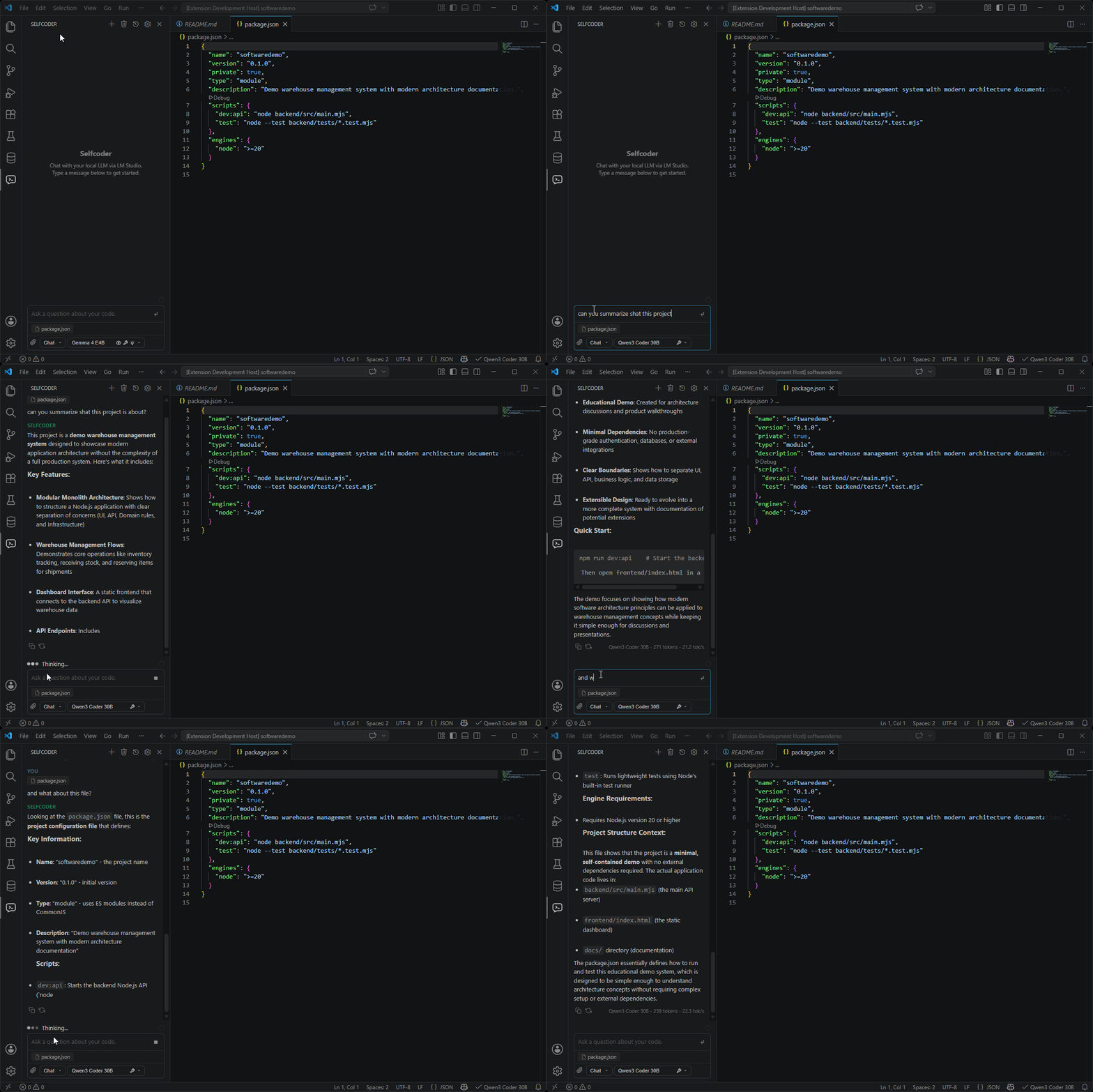
Install Selfcoder from the Visual Studio Marketplace.
To install it from VS Code:
- Open VS Code.
- Go to Extensions.
- Search for "Selfcoder".
- Install the extension published by "Coderoom".
- Reload VS Code if prompted.
Selfcoder requires VS Code 1.106 or later.
After installing, start your model backend, pick a model, and open Selfcoder from the VS Code chat bar. The Get Started with Selfcoder walkthrough opens after install and guides you through the setup.
Use the mode selector in the Selfcoder composer to choose how much action the model can take:
| Mode | Best for | Workspace access |
|---|---|---|
| Chat | Questions, explanations, and code suggestions | Uses the context Selfcoder selects; does not modify the workspace. |
| Plan | Repository investigation and implementation planning | Can actively read and search, but cannot edit files, run terminal commands, delegate work, or switch itself into Agent. |
| Agent | Implementing and verifying a solution | Can read, edit, and run commands according to your permission setting. |
Plan and Agent require a tool-capable model. They run through Selfcoder's managed OpenCode runtime and share one session, so you can investigate in Plan and switch to Agent without losing the reasoning and repository context. Switching modes never starts implementation by itself.
In Plan and Agent, add a skill with @skill or the Skills button, or run a turn as one of your workspace agents. An agent's declared tools can narrow the mode's permissions, but never widen them.
See Plan Mode for the safety model and workflow, Skills and Workspace Agents for supported folders, or Core Workflows for all three modes.
Inline code completion. Selfcoder can suggest code as ghost text while you type, using a local fill-in-the-middle (FIM) model such as Qwen Coder, Codestral, DeepSeek Coder, StarCoder, CodeGemma, or Code Llama. Press Tab to accept a suggestion. Inline completion is off by default; run Selfcoder: Select Inline Code Completion Model to turn it on. The completion model is separate from the chat model, so a small, fast model can complete code while a larger one handles chat.
Editor actions. Right-click in the editor and open the Selfcoder menu to Explain, Fix, Generate Tests, Add Docs, or Refactor the selected code, or the whole file when nothing is selected.
Quick fixes. Use Fix with Selfcoder from the lightbulb, Ctrl+. / Cmd+., the problem hover, or the Problems view to send errors and warnings with the surrounding code.
Editor actions and quick fixes run in the sidepanel's current Chat, Plan, or Agent mode. See Inline Code Completion and Editor Actions and Quick Fixes.
| Backend | Default endpoint | Use case |
|---|---|---|
| LM Studio | http://localhost:1234 |
Easy setup, local model management, GUI friendly |
| Ollama | http://localhost:11434 |
CLI-driven model management, simple local runtime |
| OpenAI compatible | http://localhost:8000 |
Connect vLLM, llama.cpp, or another backend with /v1/models and streaming /v1/chat/completions |
See Models and Backends for setup details and compatibility requirements.
Project documentation is available in the docs directory.
Useful starting points:
- Getting Started
- Core Workflows
- Plan Mode
- Inline Code Completion
- Editor Actions and Quick Fixes
- Skills and Workspace Agents
- Slash Commands
- Context and Attachments
- Models and Backends
- Settings and Privacy
- Troubleshooting
Use GitHub Issues to report bugs, request improvements, or share compatibility notes for specific models and backends.
Use the Visual Studio Marketplace page for the current version, installation, and changelog details.
Visit the Selfcoder website for the product overview, installation links, and updates.