

Lock folders and apps with Touch ID on macOS
Encrypted disk images for folders, biometric gate for apps


Install the CLI globally so tlock is on your PATH:
npm i -g @freyzo/tlock
The npm package page sidebar often shows npm i @freyzo/tlock (local install). For this tool you want -g; otherwise the tlock command may not be available in your shell.
Problem
- You want local protection for sensitive folders and apps without juggling Disk Utility every time.
- You want a deliberate, identity-checked step (Touch ID) before a sensitive folder appears on disk or a sensitive app opens. This is not a defense against malware running as your user; see Security notes.
- You need a simple loop: lock → unlock when needed → lock again when done → data stays in an encrypted volume until next unlock.
Solution
tlockis one CLI:- Folders → AES-256 encrypted, writable disk image; plain folder removed after the image is created and registered.
- Apps → wrapper + renamed binary so Touch ID / password runs before launch.
- Lock, unlock, remove, and shred go through authentication: Touch ID or your Mac login password, enforced by the Secure Enclave, with a recovery passphrase as fallback. Putting an unlocked folder away again needs none, since it only removes access.
- Short flags:
-uunlock,-rremove,-sshred (same asunlock/remove/shred).
Summary
| You want | Command |
|---|---|
| First-time lock folder | tlock /path/to/folder |
| First-time lock app | tlock Slack or tlock /Applications/Slack.app |
| Open locked folder | tlock unlock /path or tlock -u /path |
| Open it for a limited time | tlock unlock /path --for 30m |
| Put an unlocked folder away again | tlock /path |
| Lock every unlocked folder now | tlock --all or tlock -a |
| Choose when folders lock themselves | tlock autolock |
| Stop using tlock on folder (restore normal folder) | tlock remove /path or tlock -r /path |
| Destroy a locked folder for good (no restore) | tlock shred /path or tlock -s /path |
| Forget a lock whose image or app is gone | tlock remove --force /path |
| List locks | tlock list |
| Summary / detail | tlock status or tlock status /path |
Requires macOS (darwin) and Node.js ≥ 18.
Use global install (required for the tlock command):
npm i -g @freyzo/tlockAfter a global install, tlock prints the same banner, help and quick-reference table as tlock -h.
Or one-off (folders only — app locking needs the global install):
npx @freyzo/tlock --helptlock [target]| Arg | Description |
|---|---|
target |
Folder path or app name / .app path to lock. Auto-detects folder vs app. Run it again on an unlocked folder to lock it again. |
First run: you create a recovery passphrase (12+ characters). It is never stored: day to day you unlock with Touch ID or your Mac login password, and the passphrase is the way back in on a new Mac or if the Secure Enclave key is lost. Forget it and lose this Mac, and locked folders cannot be recovered.
Upgrading from 0.1.x: after you create the recovery passphrase, existing folder locks are re-keyed automatically and the old master password is deleted from Keychain.
A folder named like a subcommand (list, status, unlock, remove, shred, autolock) must be passed as a path, e.g. tlock ./list.
tlock unlock <target>     # or:  tlock -u <target>
tlock remove <target>     # or:  tlock -r <target>
tlock shred <target> # or: tlock -s <target>| Command | Description |
|---|---|
unlock / -u |
Folder: authenticate, then mount its image at the original path. --for 30m locks it again after that long. App: open it; its wrapper asks for Touch ID / password. |
remove / -r |
Authenticate, restore normal folder or app binary, delete the image / wrapper. --force forgets a lock whose image or app binary is missing. |
shred / -s |
Folder only. Authenticate, eject if open, erase the image's keys (hdiutil erasekeys), overwrite the key file, delete the image, and clear Quick Look thumbnails, Recents and the parent's .DS_Store. Nothing is restored. |
tlock --all                        # or: tlock -a — lock every unlocked folder now
tlock unlock <folder> --for 30m    # lock again after 30 minutes (also 90s, 2h)
tlock autolock                     # show settings
tlock autolock --idle 15m          # lock after 15 min without keyboard/mouse input (or: off)
tlock autolock --screen-lock on    # lock when the screen locks or another user switches in
tlock autolock --sleep on          # lock when the Mac sleeps
Defaults: screen lock on, sleep on, idle 15 min. While a folder is unlocked, a small background process (tlock autolock-watch) checks every 5 seconds and exits once nothing is unlocked. It never force-ejects: if files on the volume are in use, it shows a notification once and retries. tlock --all does the same and lists any folder it could not lock.
tlock list
tlock status              # counts
tlock status <target>     # one entry + image path; exit code 1 if not locked
tlock --help# Folder
tlock ~/Documents/private-notes
tlock unlock ~/Documents/private-notes
tlock -u ~/Documents/private-notes
tlock ~/Documents/private-notes # while unlocked: lock it again
# App
tlock Slack
tlock /Applications/Slack.app
tlock unlock Slack
# Drop tlock for a folder permanently (restores plain folder)
tlock remove ~/Documents/private-notes
tlock -r ~/Documents/private-notestlock unlock ~/path(ortlock -u ~/path) — use files.- Add/change files while unlocked; the volume is writable and grows as needed.
tlock ~/pathortlock --allwhen finished — path disappears; data stays in~/.tlock/*.sparsebundle. Forget, and auto-lock does it on screen lock, sleep, or idle.- Next time:
tlock unlockagain.
Locks made by older tlock versions (~/.tlock/*.dmg) open read-only. To make one writable: tlock remove ~/path, then tlock ~/path. Locks stored as a single *.sparseimage keep working; the same remove-and-lock-again moves one to the backup-friendly sparse bundle format.
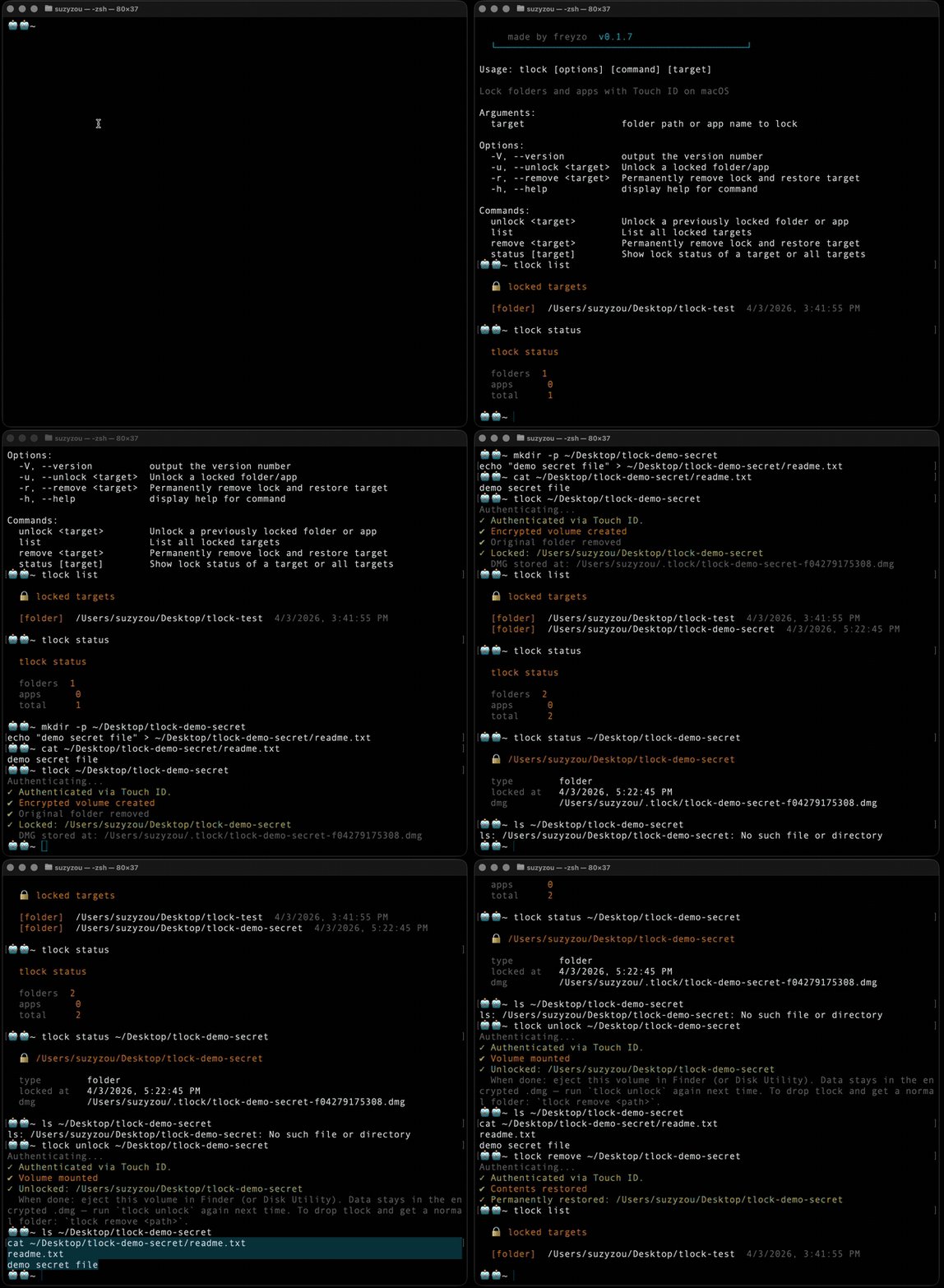
Security round-trip against this checkout (run npm install first):
npm run test:penChecks: lock succeeds → path gone while locked → unlock → file contents match and the volume is writable → lock again → remove restores every file → lock and shred leave nothing behind. You'll be asked to authenticate five times (the macOS Touch ID sheet with the tlock logo). Like lok -s, the shred step also clears Recents.
hdiutilcreates an AES-256 encrypted, writable APFS sparse bundle (~/.tlock/<name>-<hash>.sparsebundle) with its own random key, anddittocopies the folder in. Only used space is stored, in 8 MB pieces, so Time Machine backs up just the pieces that changed.- The lock is registered, then every file in the original folder is overwritten with random bytes and the folder is removed.
tlock unlockattaches the image at the original path, hidden from the Desktop and Finder sidebar (-nobrowse); the folder opens normally from its own location.tlock <path>,tlock --all, or auto-lock puts it away; the encrypted image stays under~/.tlock/.
tlock refuses to lock ~/.tlock or any folder containing it, a mounted volume, and folders inside or containing another locked folder.
CFBundleExecutablebinary renamed to<name>.tlock-original; bash wrapper installed in its place.- Wrapper runs hidden
tlock auth-gatewith the Node.js and tlock paths recorded at lock time → Touch ID / Mac login password, or the recovery passphrase (terminal prompt, or a macOS dialog when launched from Finder / Dock) →execreal binary. tlock unlock <app>just opens the app; the wrapper asks.- Run
tlock <app>again to repair the wrapper (e.g. after Node.js moved) or to re-apply the lock after an app update.
- Keys, not a yes/no check. Each image has a random 256-bit key, sealed (AES-256-GCM) by a vault key. The vault key is derived from your recovery passphrase (scrypt) and also sealed to a Secure Enclave key created with
.userPresence: the chip only releases it after Touch ID (any enrolled finger) or your Mac login password. Editing tlock's code or swapping its helper does not get anyone past that. - The prompt is the standard macOS Touch ID sheet: "tlock is trying to unlock “folder”", with the tlock logo. It comes from a small Swift helper built once into
~/.tlock/helper-<hash>/tlock.app(needsswiftcfrom the Xcode Command Line Tools). - Recovery passphrase is asked for when the Secure Enclave is unavailable, or if you cancel the prompt. After 5 wrong passphrases, wait up to a minute. On a new Mac, one correct passphrase sets up Touch ID again.
- System tools are called by absolute path (
/usr/bin/hdiutil, …), so a look-alike earlier inPATHis never run.
| Item | Location |
|---|---|
| Lock registry and auto-lock settings | ~/.tlock/config.json |
| Encrypted images | ~/.tlock/*.sparsebundle (older locks: *.sparseimage, *.dmg) |
| Per-image keys (sealed) | ~/.tlock/*.sparsebundle.key — keep next to the image |
| Vault (sealed vault key, no passphrase) | ~/.tlock/vault.json — rebuilt from the recovery passphrase if lost |
| Touch ID helper | ~/.tlock/helper-<hash>/tlock.app |
| Auto-lock watcher | ~/.tlock/autolock.pid (while a folder is unlocked) |
| Failed password attempts | ~/.tlock/.auth-failures |
| Registry write lock | ~/.tlock/config.lock (transient) |
| Temporary mount points | ~/.tlock/mount-* (transient) |
- macOS only —
hdiutil,security,LocalAuthentication. - SIP — cannot lock apps under
/System/Applications. - App lock — renaming binary can break code signing / Gatekeeper for some apps.
- App Management (macOS 13+) — allow your terminal under System Settings → Privacy & Security → App Management, or app locking is denied. Apps owned by root (e.g. some App Store apps) can't be locked.
- App updates replace the wrapper; run
tlock <app>again to re-apply the lock. - Global install required for app locking (the wrapper records tlock's path; the
npxcache is temporary). - Cloud folders — locking a folder inside iCloud Drive / Dropbox deletes it from the cloud too.
- Folder images use native AES-256 encryption (
hdiutil) with a random key per image; nothing usable is stored in Keychain. - Someone at your unlocked Mac with a terminal cannot open a locked folder without your finger, your Mac login password, or the recovery passphrase.
- Not covered: malware running as you can read a folder while it is unlocked (auto-lock keeps that window short), or tamper with tlock and capture a key the next time you authenticate. Only a separate macOS account plus FileVault protects against that.
- Copies made before locking (Time Machine, APFS local snapshots, iCloud / Dropbox versions) still hold the plain folder. Overwriting files before deletion is best effort on SSDs and APFS. Turn on FileVault.
- App wrapper is a deterrent, not a barrier: the real binary stays runnable (
Contents/MacOS/<name>.tlock-original) and the app's data in~/Libraryis not encrypted. - Shred erases the image's keys and the key file, but copies of
~/.tlockin backups can still be opened with your recovery passphrase.





